
Locking or Unlocking Participant Results in the Driven Pro Admin Area allows you to control when participants can view their assessment results. When creating a program, you can choose to show results automatically or keep them locked until you are ready to make them available.
Choose When Participants Can View Results
When creating a program, you can decide when participants will be able to access their assessment results. This gives you the flexibility to release results automatically or keep them locked until you are ready to review or discuss them.
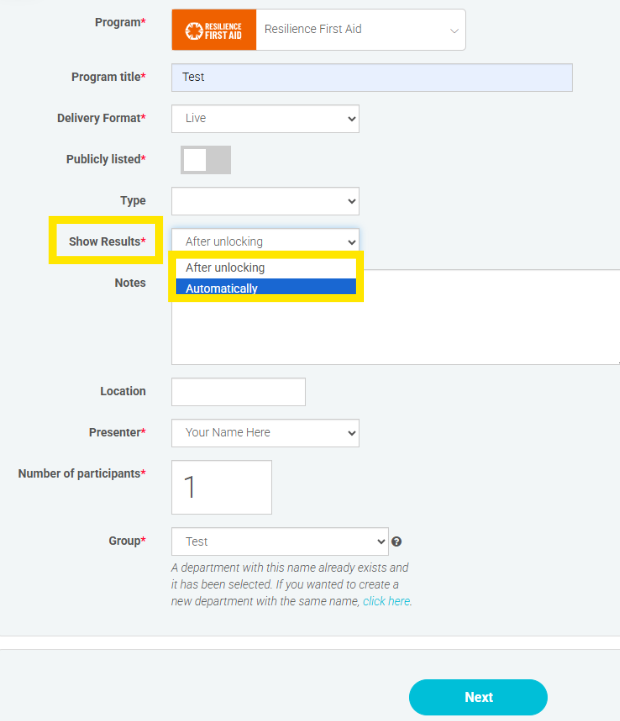
Step 1: Create Your Program: From the Programs section, select Add Program and complete the program details as usual.
-
Step 2: Choose How Results Are Displayed: As part of the program setup, choose whether participant results should be available automatically or after unlocking.
Automatically: Participants can view their results once they are available.
After Unlocking: Participants will not be able to view their results until you unlock them from the program.
ℹ️ Note: This feature can be useful if you prefer participants not to see their results before a workshop and want to review or discuss them together first.
Unlock Participant Results
If you selected After Unlocking when creating the program, you can unlock the results later from the Programs section.
Step 1: Open the Program: Log in to your Driven Pro account, go to the Programs section from the main menu, and locate and open the relevant program.
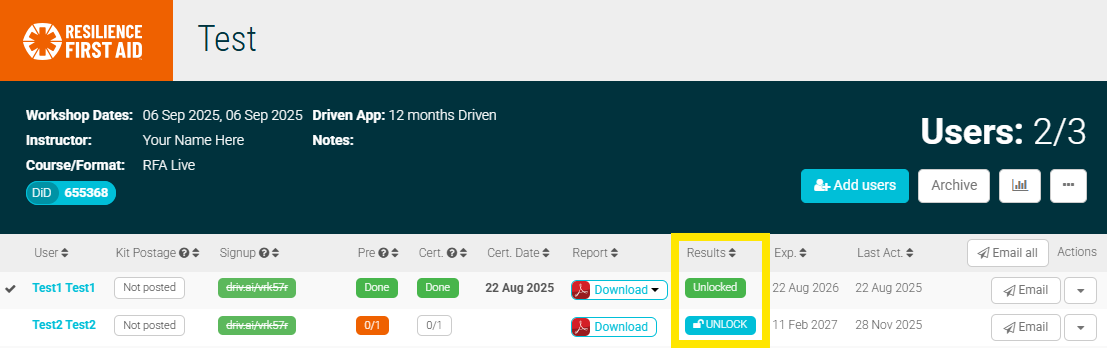
Step 2: Locate the Participant: Find the participant whose results you want to unlock. In the Results column, participants whose results are still locked will show an Unlock button.
Step 3: Unlock the Results: Click Unlock next to the participant. Once unlocked, the status in the Results column will change to Unlocked, and the participant will be able to view their assessment results.
Important Notes
Select Automatically if you want participants to see their results as soon as they are available.
Select After Unlocking if you want to control when participants can access their results.
If you select After Unlocking, you can unlock each participant's results later from the Programs section.
Check the Results column to see whether results are locked or unlocked.
Need More Help?
If you have further questions or need assistance, please contact our Support team at support@hellodriven.com. We're here to help.