
Editing User Details in the Driven Pro Admin Area allows you to update an existing participant's information without removing them from their program. You can access a participant's details from either the Programs or Users section of your Driven Pro account.
Edit a User from the Programs Section
You can edit participant details directly from the Programs area:
Log in to your Driven Pro account.
Go to the Programs section from the main menu.
Locate and open the program the participant is enrolled in.
Find the participant you want to edit within the program.
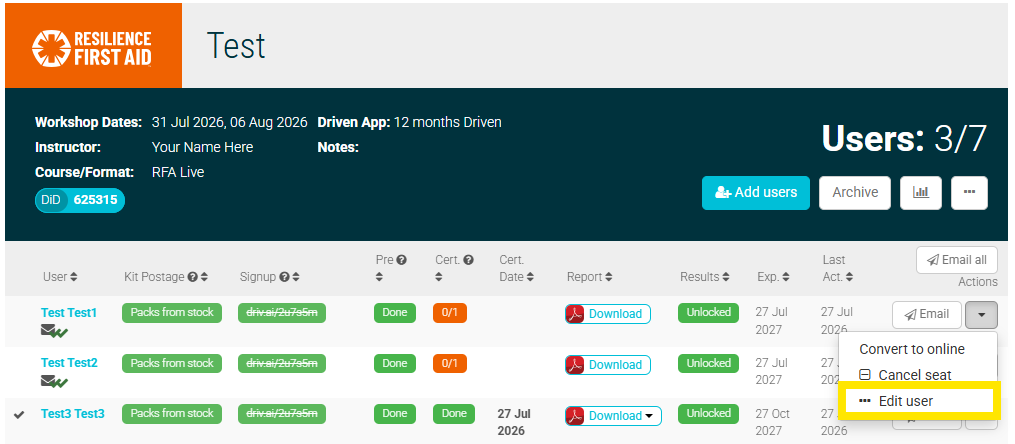
On the right side of the participant's row, click the down arrow to show the available options, then select Edit User (this will open the participant's details in the Users section).
Update the participant information as required, then save your changes.
Edit a User from the Users Section
You can also edit participant details directly from the Users section:
Go to the Users section of your Driven Pro menu and locate the relevant program.
Within the program, locate the participant you want to edit.
Click the three-dot icon next to the participant's name to open the available options.
Open the participant's details.
Update the required information and save your changes.

Important Notes
Editing a participant updates their existing account - it does not create a new participant.
If the participant is already assigned to a program, their program assignment remains in place when their details are updated.
To remove a participant from a specific program, use Cancel Seat instead.
Troubleshooting & Support
If you have further questions or need assistance, please contact our Support team at support@hellodriven.com. We're here to help.