
The Group Invite feature in Driven Pro allows practitioners and administrators to quickly bring existing users from any company group into fresh workshops, reassessments, or other programs.
ℹ️ Batch Group Management: Clicking Group Invite instantly pulls all members of a company group into an editable participant list, eliminating the need to add users individually.
Where to Find the Group Invite Button
The Group Invite button is located right next to each group in the Users section of your Driven Pro account.
Log in to your Driven Pro account and go to the Users section from the main menu.
Locate the company group you would like to invite to a new program.
Click the Group Invite button beside the group name to open the batch invitation window.

How to Use the Group Invite Feature
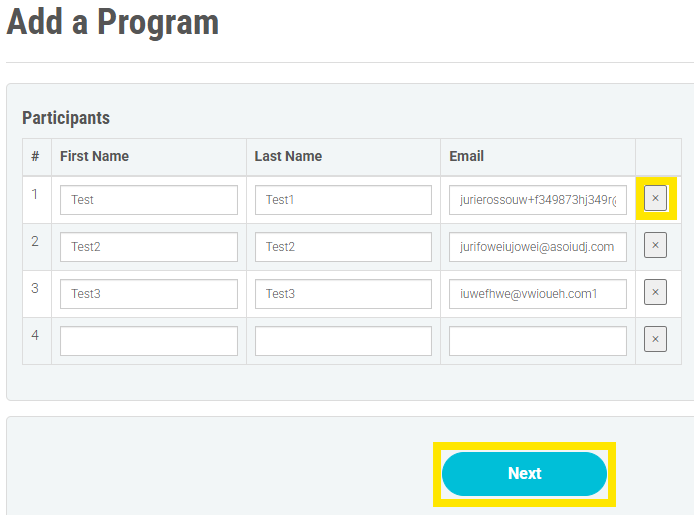
Once the "Add a Program" invitation window opens, you can manage your participant roster before proceeding:
Managing the Participant List
Add Users: Type additional user details or paste a list of names and emails.
Remove Users: Click the X beside a participant's name to exclude them from the invitation.
Update Details: Edit user information directly within the invitation window if adjustments are needed.
Copy and Paste: Quickly paste lists of users for fast, high-volume group management.
Proceeding with Program Creation
Once your participant list is finalized, click Next at the bottom of the roster window.
-
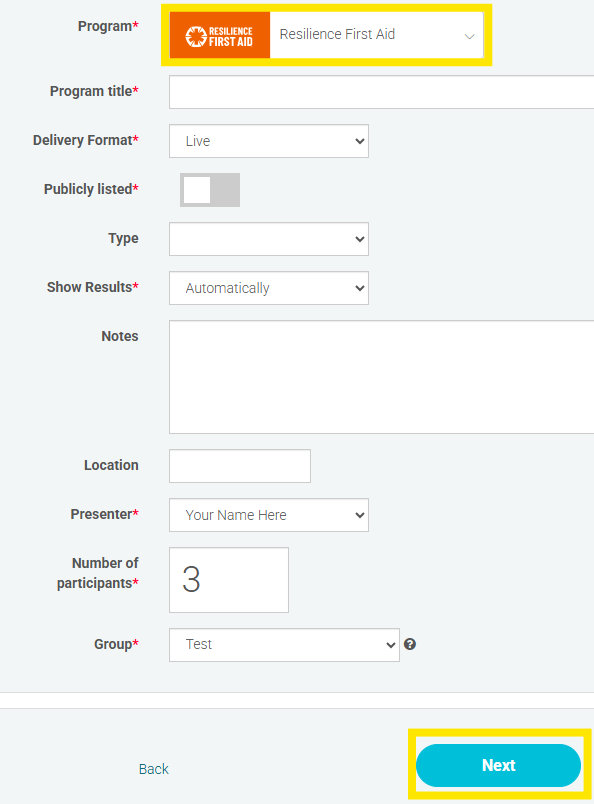
Complete the program configuration details:
Program & Program Title: Select the program type (e.g., Resilience First Aid) and name.
Delivery Format & Publicly Listed: Choose your delivery mode (e.g., Live) and toggle public visibility.
Type & Show Results: Configure assessment tracks and result visibility settings (e.g., Automatically).
Notes, Location, & Presenter: Enter session notes, venue/online location, and presenter name.
Number of Participants & Group: Verify the headcount and confirm the target company group.
Click Next to finalize creation and send out the group invitations.
Why Use the Group Invite Feature?
Efficiency: Instantly gather all existing users from a group so you don't have to enter names one by one.
Flexibility: Add or remove participants in seconds, customizing the roster for each program's needs.
Accuracy: Pulls the latest user details directly from your company group, ensuring everyone's information is up to date.
Easy Group Management: Perfect for inviting teams to recurring events like workshops or reassessments.
Troubleshooting & Support
If you encounter issues batch-inviting groups, updating participant rosters, or configuring program settings, please reach out to our support team via Support in Driven Pro or email us directly at support@hellodriven.com.