
Sending Emails to Participants is a key feature in the Driven Pro Admin Area, helping coaches and program managers encourage participants to stay engaged and complete their resilience training. This guide will walk you through the steps to send reminder emails to your program participants.
Access the Programs Section
Log in to the Driven Pro Admin Area.
From the main menu, select Programs to view your list of active and archived programs.
Locate the Program
Scroll through the list or use the search and filter options to find the specific program for which you want to send reminders.
Click on the program name to open its details and participant list.
Send a Reminder to a Participant
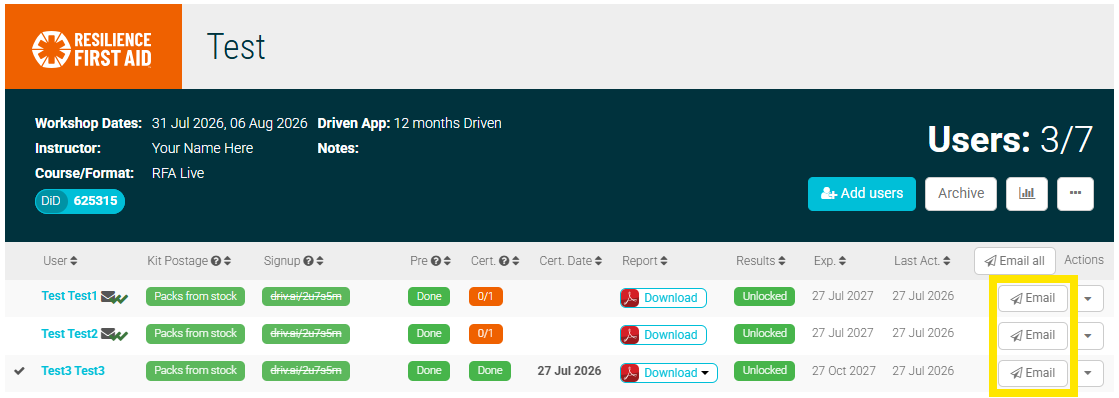
In the participants column, locate the participant you wish to remind.
Click the Email button next to the participant's name.
A new page will open, allowing you to preview the reminder email.
If needed, you can update the content of the email to better suit your message or the participant's progress.
Once satisfied, click Send Email to dispatch the reminder to the participant.
Tips for Effective Reminders
Reminders can be sent to encourage completion of pre-work activities or the main course modules.
Use clear, encouraging language to motivate participants to continue their training.
You can send reminders as often as needed to support ongoing engagement until the participant completes the program.
Additional Participant Management Options
To edit participant details, click the three-dot icon next to their name and access the Users section.
From here, you can also view reports, download certificates, and check activity completions.
Other participant actions include assigning/inviting users, sending signup links, and archiving or deleting accounts as appropriate.
Need Assistance?
If you have questions or need further support, please Contact Us through our help center. Our team is ready to assist you.