
Sending a Signup Link is an essential step to onboard new participants into your Driven program, whether you are running a workshop, assessment, or certification. Driven offers flexible options to streamline the registration process for both individuals and groups. Follow the instructions below to generate and send signup links efficiently.
Options for Sending Signup Links
There are two ways to send signup links, depending on how the program was set up:
Sending a Signup Link per Participant: Each participant has their own unique signup link. You can send the invitation directly to each participant or copy their individual signup link or QR code.
Sending a Group Signup Link: All participants use the same signup link to register for the program. You can send invitations to multiple participants at once or share the group signup link or QR code directly.
⚠️ Note: Once a program is created, the signup link type cannot be changed.
How to Send a Signup Link
Step 1: Access the Programs Section
Log in to your Driven Pro account.
Go to the Programs section from the main menu.
Locate the specific program for which you want to send signup links.
Option 1: Sending a Link per Participant
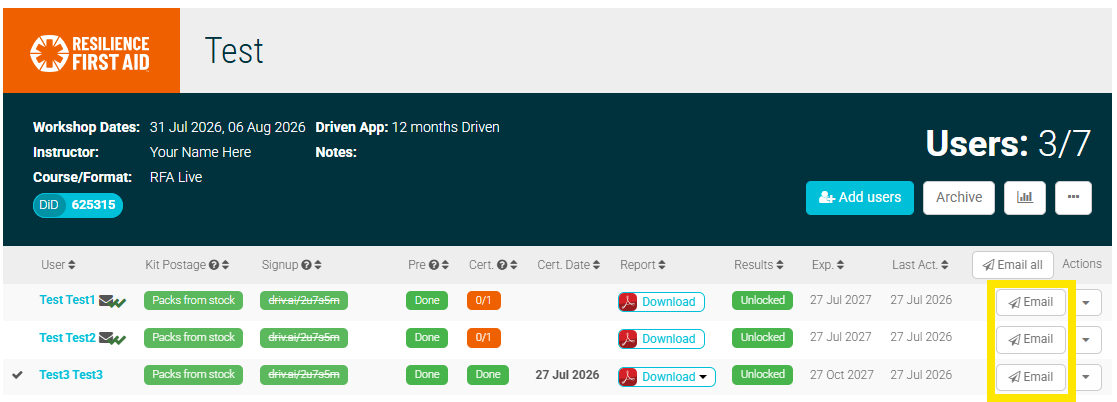
If seats are already assigned, click Assign & Invite for each seat.
Add participant details (first name, last name, email address) as prompted.
Send invite emails individually. Each participant will receive a unique signup link.
Alternatively, in the Signup Link column, you can copy the link or QR code and share it directly with the participant via email.
Option 2: Sending a Group Link
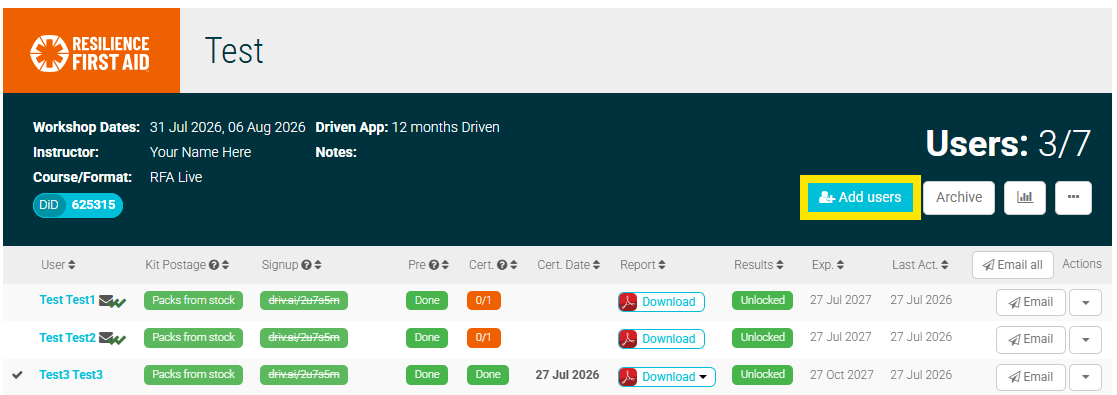
If seats are not yet assigned, click Add Users within the program.
Add the number of seats and provide participant information as needed.
After adding seats, select Bulk Assign & Invite within the Add Users window.
Enter the participant details, or copy and paste them from a spreadsheet.
As soon as a participant is added to the list, they are saved and assigned to the workshop — even if you do not send the invitation email. This allows you to assign participants first and send their invitations later.
If you're ready to invite them, customize the invitation email and send it to the participants.
You can also share the Group Signup Link or QR Code directly. All invited participants can use the same link to register.
Best Practices
Communicate clearly to participants that signup links are personal and should not be shared.
For one-time secure access, remind users that the link can only be used once.
Review participant status and resend invites if needed from the program dashboard.
Troubleshooting & Support
If you or your participants encounter any issues with registration or accessing the signup link, please contact the Driven support team for assistance. For further details on managing programs, assigning participants, or troubleshooting, refer to related articles in the Driven Help Center.