
Cancel Seat and Delete User Account is an important administrative function within the Driven Pro Admin Area. This guide provides step-by-step instructions for coaches to efficiently manage participant accounts, ensuring privacy and compliance while keeping program records organized.
ℹ️ Important Order: If a participant is currently enrolled in a program, you must cancel their seat first before deleting their account.
Cancel vs. Delete User Account
Cancel Seat: Removes the participant from a specific program and removes their access to that program. Their Driven account and existing records are retained.
Delete User Account: Permanently deletes the participant's Driven account. This action cannot be undone.
Step 1: Cancel Seat
Log in to Driven Pro and go to the Programs section.
Open the program the participant is currently enrolled in.
Find the participant in the user list.
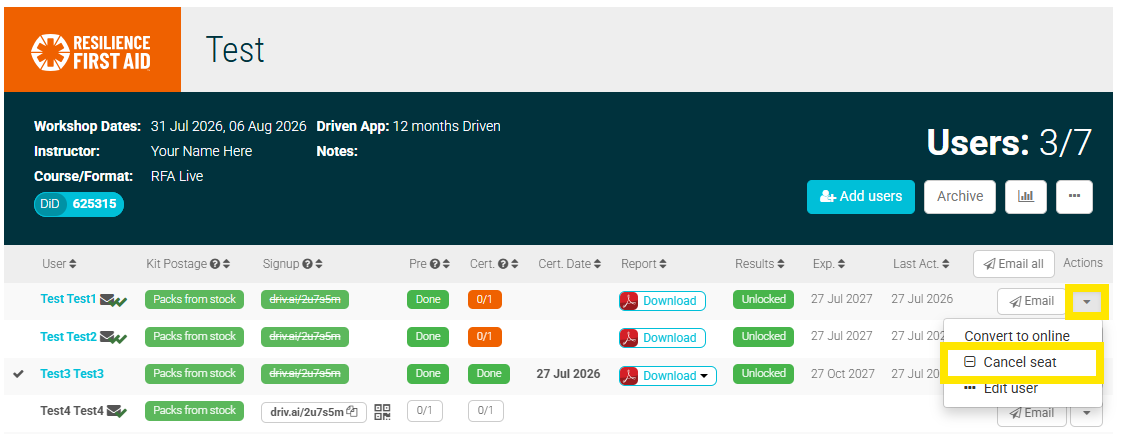
On the right side of their row, click the down arrow to show the available options.
Select Cancel Seat. The participant will be removed from that program and will no longer have access to its content.
What Happens Next?
When you cancel a participant's seat in a program that includes a physical pack, what happens depends on whether the pack has already been shipped:
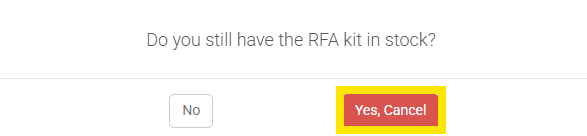
Pack Already Shipped: If the pack has already been shipped, Driven will ask if you still have the pack in stock. Select Yes, Cancel to cancel the seat and return the pack to your stock inventory for use in another program.
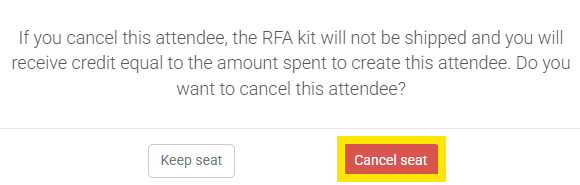
Pack Not Yet Shipped: If the pack has not been shipped, select Cancel seat. The pack will not be shipped, and you will receive a credit equal to the amount spent to create the attendee.
Step 2: Delete User Account
Once the participant's seat has been canceled, you can access their account details and permanently delete their account using one of two methods:
From the Programs Section
In the Programs section, open the relevant program and locate the participant.
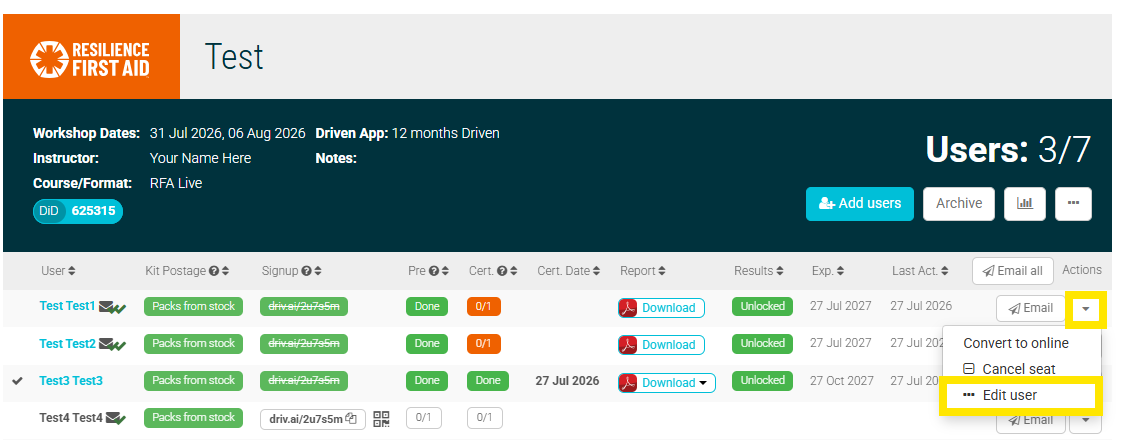
Click the down arrow to show the available options.
Select Edit User.
On the participant details page, open the Account tab.
Scroll down to the Danger Zone section.
Select Delete User Account and follow the prompts to confirm the deletion.
From the Users Section
You can also access the participant's account directly from the Users section:
Go to the Users section of your Driven Pro menu and locate the program.
Within the program, locate the participant you want to delete.
Click the three-dot icon next to the participant's name to open the available options.
Open the participant's account details and select the Account tab.
Scroll down to the Danger Zone section.
Select Delete User Account and follow the prompts to confirm the deletion.

Important Notes
Cancel Seat only removes the participant from the selected program and does not delete their Driven account.
Deleting a user account is permanent and cannot be undone; use this option only when you are certain the account should be deleted.
Troubleshooting & Support
If you have further questions or require direct assistance, please contact our Support team at support@hellodriven.com. We are here to help you manage your programs and participants effectively.