
If you are having trouble hearing video modules or need to adjust sound levels on the Driven platform, follow this guide to adjust playback settings and resolve common audio issues.
Adjusting Video Player Controls
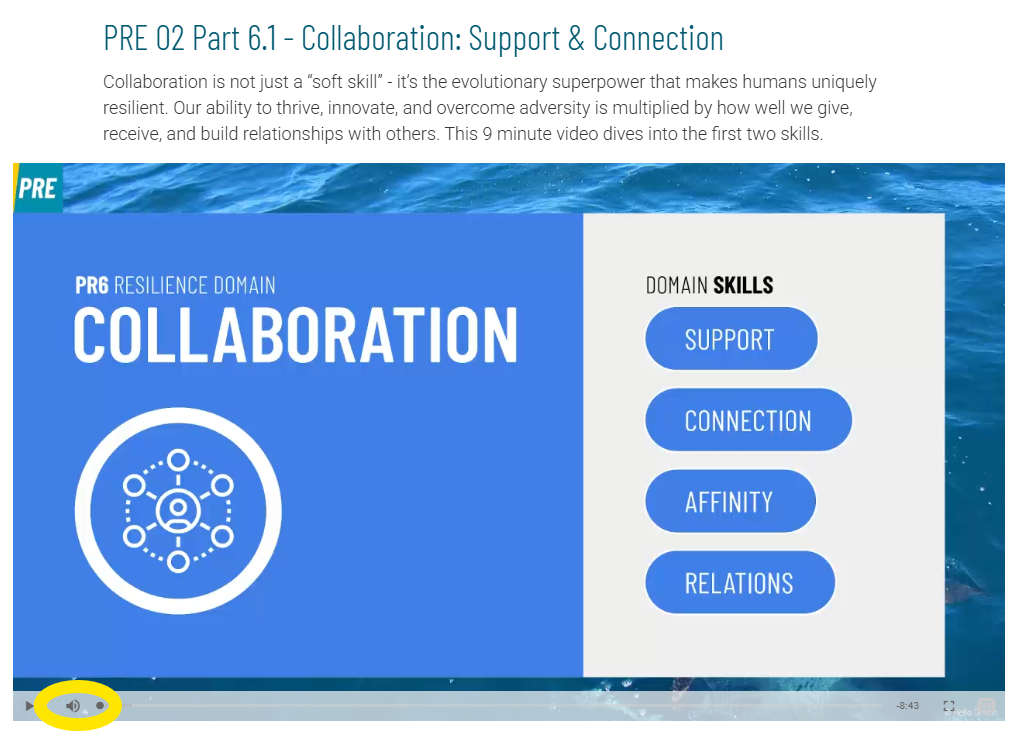
Locate the Volume Icon: While playing a video, locate the speaker icon in the bottom-left corner of the video player.
Adjust the Slider: Hover your cursor over the speaker icon to reveal the volume slider. Click and drag the slider to the right to increase volume, or to the left to decrease it.
Mute / Unmute: Click the speaker icon directly to toggle mute on or off. A slash through the icon indicates the video is muted.
Audio Troubleshooting Steps
If you cannot hear audio after adjusting the video player controls, follow these troubleshooting steps:
Check System Volume: Test audio on another website (such as YouTube). If other sites are also silent, adjust your device's master volume or check your headphones/speaker connections.
Try Incognito / Private Mode: Browser extensions or cached data can sometimes block audio playback. Open an Incognito window (Ctrl+Shift+N on Windows or Cmd+Shift+N on Mac), log into https://hellodriven.com/login, and test the video again.
Switch to the Driven Resilience App: If browser issues persist, log into the Driven Resilience App on your mobile device or desktop application where audio playback is handled natively.
Troubleshooting & Support
If you continue to experience video or audio playback issues after following these steps, please submit a request through the Contact Us option in Driven Pro or email us directly at support@hellodriven.com. Our technical support team is happy to assist.