
Assigning and inviting participants is a key step in delivering effective resilience programs through the Driven Pro Admin Area. Whether you're running a workshop, training, or assessment, the Driven Pro Admin Area gives you flexible tools to add users, send invitations, and manage participant engagement from start to finish. This guide walks you through the process step by step.
Access the Programs Section
Log in to your Driven Pro account.
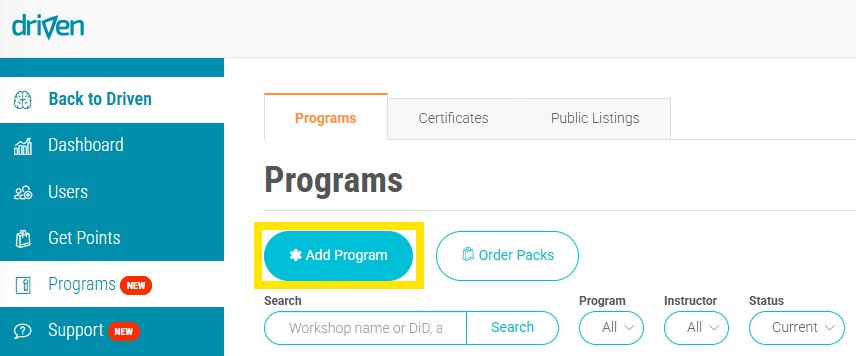
Select Programs from the main menu to view your active and upcoming programs.
Create or Select a Program
If you haven't already, create a new program by clicking Add Program and following the setup steps for your chosen program type.
To assign participants to an existing program, locate it in the list and click to open its details.
Add Participants to Your Program
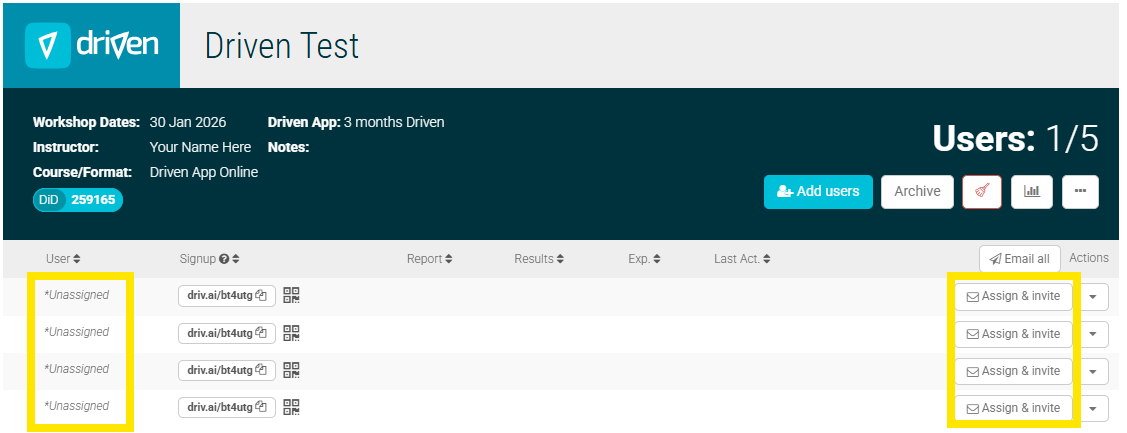
You can assign participants to available seats directly within the program or use Add Users to add more seats or multiple participants.
To assign a participant to an available seat, click Unassigned on the left of the available seat or Assign & Invite on the right.
Enter the participant's first name, last name, and email address.
Add additional details if you want to include demographic information for the participant.
Once the participant's information is entered, their details are automatically saved and assigned to the program. You can assign the participant without sending an invitation email straight away.
-
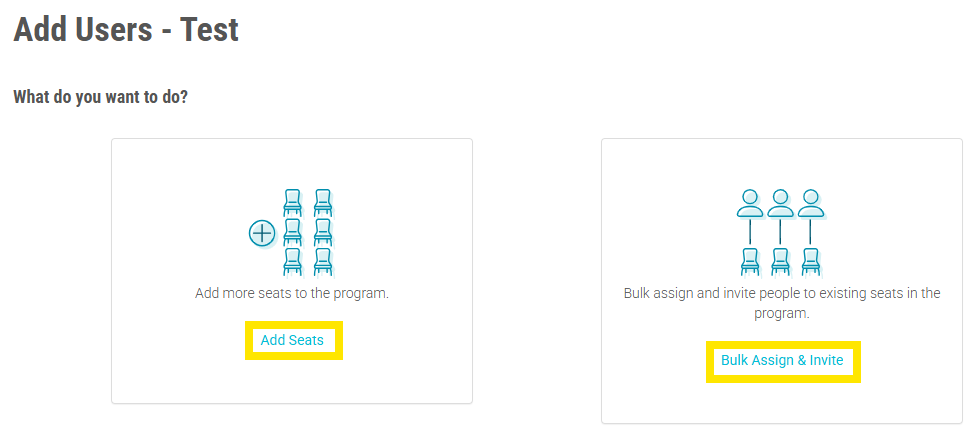
To add more seats or multiple participants, click Add Users at the top of the program. From here, you can:
Add More Seats: Increase the number of available seats by selecting the number, region, and kit shipping method if required.
Bulk Assign & Invite: Add and assign multiple participants at once.
Bulk Assign & Invite Participants
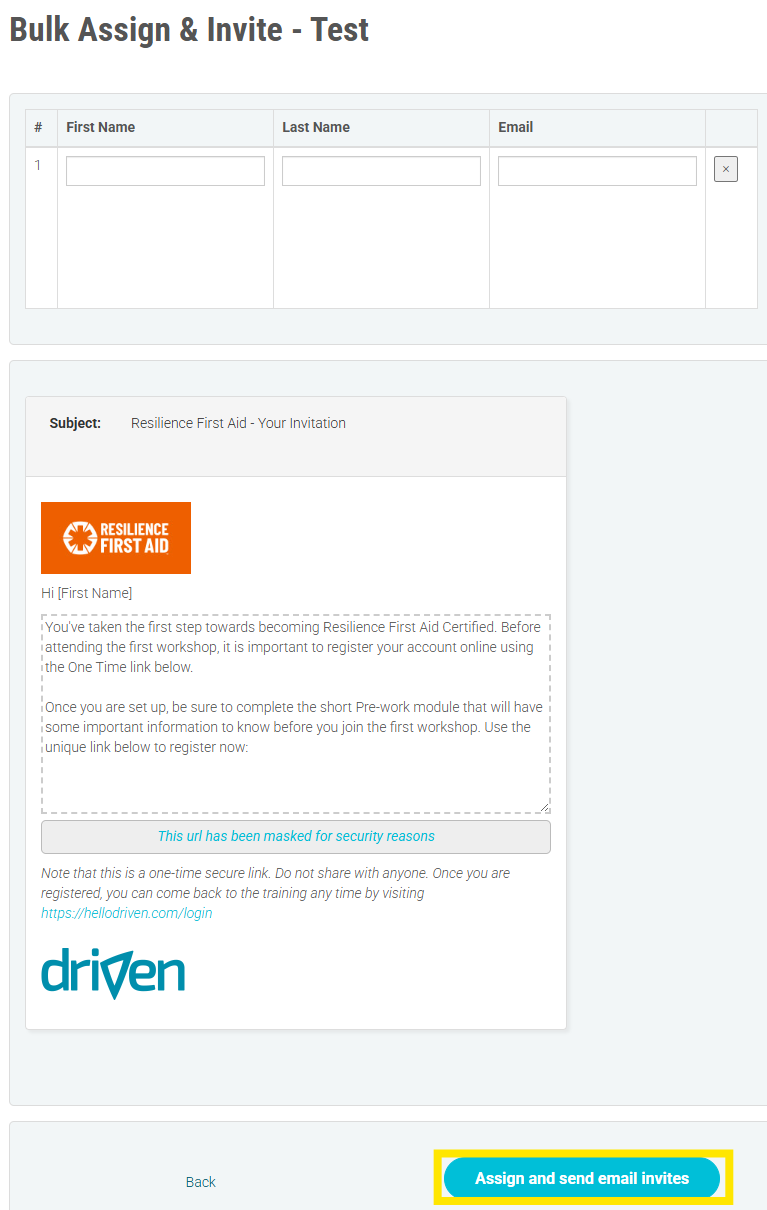
For larger groups, use Bulk Assign & Invite to quickly add and assign multiple participants:
Prepare a spreadsheet with participant details, including first name, last name, and email address.
Copy the participant rows from the spreadsheet and paste them into the Bulk Assign & Invite list.
Review the participant details before continuing.
As participants are added to the list, their details are automatically saved and assigned to the program, even if you do not send the invitation email yet.
When ready, review the invitation email and send it to all listed participants at once.
Send Invitations
Once participants have been assigned to the program, you can invite them in one of these ways:
Send invitations now with Bulk Assign & Invite: Review the invitation email, then click Assign and Send Email Invites to send the invitation to all participants listed.
Send the invitation later: If you assigned a participant but did not send the email, return to the program and click Email beside their name when you are ready to send it.
Share the Signup Link or QR Code yourself: Copy the program's Signup Link or QR Code and send it to participants from your own email address or another communication channel.
Monitor and Manage Participants
Track participant progress, activity, and completion status from the program dashboard.
Send reminders or follow-up communications as needed.
Use the program's DID (Driven Identification) number to quickly search for specific participants or programs within the platform.
Best Practices and Tips
Use Bulk Assign & Invite for efficient onboarding of large groups.
Double-check participant details before sending invites to avoid delivery issues.
Utilize the admin areas to monitor engagement and tailor your coaching or support as needed.
Archive programs when they are complete or inactive to keep your workspace organized.
Need Help?
If you have additional questions or need assistance, please submit a request through the Driven support center. Our team is ready to help you make the most of your resilience programs.