
Adding Users to your programs in the Driven Pro Admin Area is a streamlined process designed to help you efficiently onboard individuals and manage group registrations. This guide walks you through step-by-step instructions for adding participants, using bulk assign features, and sending signup links to ensure a smooth experience for both administrators and participants.
ℹ️ Bulk Assign Top Tip: The Bulk Assign & Invite feature enables you to copy participant details directly from a spreadsheet, making it easy to add many participants at once and send a single invite email simultaneously.
Add Users to a Program
Access Driven Pro and navigate to the Programs section.
Locate the specific program you want to manage.
Click Add Users to open the participant management page.
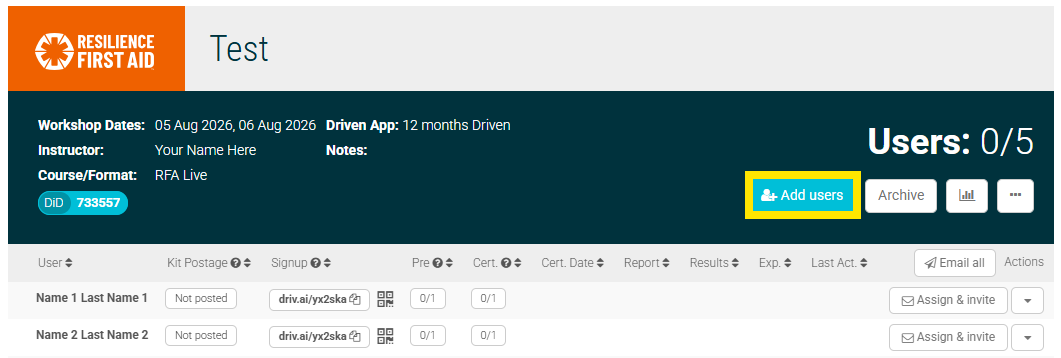
On the new page, you have two main options:
Add Seats: Increase available seats by specifying the number of seats, region, and kit shipping method (if needed).
Bulk Assign & Invite: Assign and invite multiple individuals to existing seats in the program.
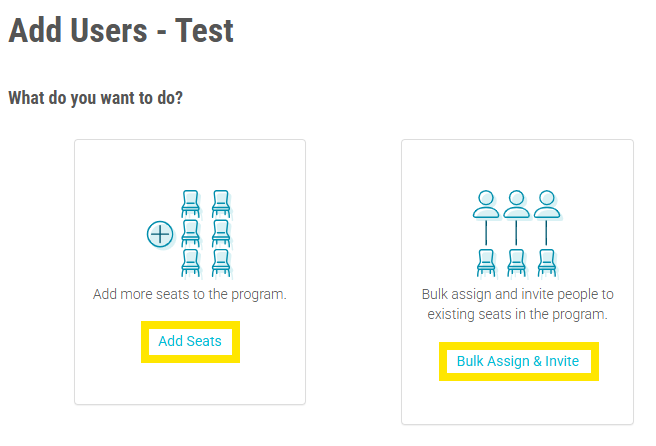
Bulk Assign & Invite
Within the Add Users page, click Bulk Assign & Invite.
Copy and paste participant details (such as names and email addresses) from your spreadsheet into the provided field.
Customize the invitation email as needed.
Send the invite to all participants in one step.
Sending Signup Links
Driven Pro offers two ways to send signup links to participants:
Group Link: A single signup link that all participants can use to register for the program, simplifying administration and recommended whenever available.
Link per Participant: Each participant receives a unique signup link, allowing for precise control over registrations.
⚠️ Note: Once the program is created, the Signup Link cannot be changed.
How to Send Signup Links
Go to the Programs section in Driven Pro.
Locate the desired program.
-
Depending on your needs:
If sending a group link: If seats are not yet assigned, click Add Users and add the required number of seats; after adding seats, use Bulk Assign & Invite to copy participant details, customize the group email, and send the group signup link to all participants.
If sending individual links: If seats are already assigned, click Assign & Invite for each seat; add each participant's details and send their unique signup link via email; you can also find and distribute individual signup links or QR codes from the Signup Link column.
Email Tracking and Monitoring
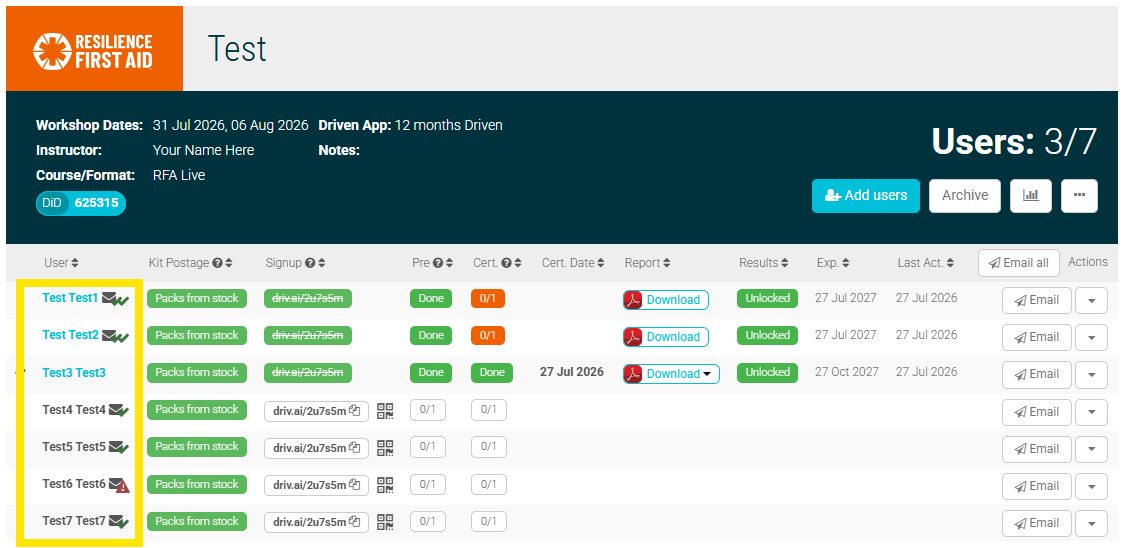
After sending invite emails, you can monitor their status using the Email Tracking feature:
One green tick: Email successfully sent.
Two green ticks: Email was received and opened (note: some email clients may not display both ticks).
Red triangle with exclamation mark: Email failed to deliver. Check and correct the participant's email address, then resend the invite.
No tick: Old participants (before the feature was enabled) will not display tracking ticks.
Troubleshooting & Support
If you have questions or need further assistance with adding participants or using bulk assign features, please submit a request through the Contact Us option in the Driven Pro Admin Area. Our support team will respond as soon as possible.