
The Driven Pro Admin Area provides coaches and administrators with a central platform to organize, monitor, and manage resilience programs and their participants. This guide walks you through the key steps and features for effectively managing programs and participants within the Driven platform.
Understanding Programs in Driven
A Program in Driven is a defined workshop, training, or assessment (such as Resilience First Aid, HART, RFAst, PRE & Driven Resilience App) delivered to a group of people. Programs can be live, blended, or online, and allow you to register and manage participants from start to finish.
Accessing the Programs Section
Log in to your Driven Pro account.
Navigate to the left sidebar and click on Programs.
Managing Programs
The Programs page gives you access to tools for creating, finding, organizing, and managing your programs.
Programs Page Features
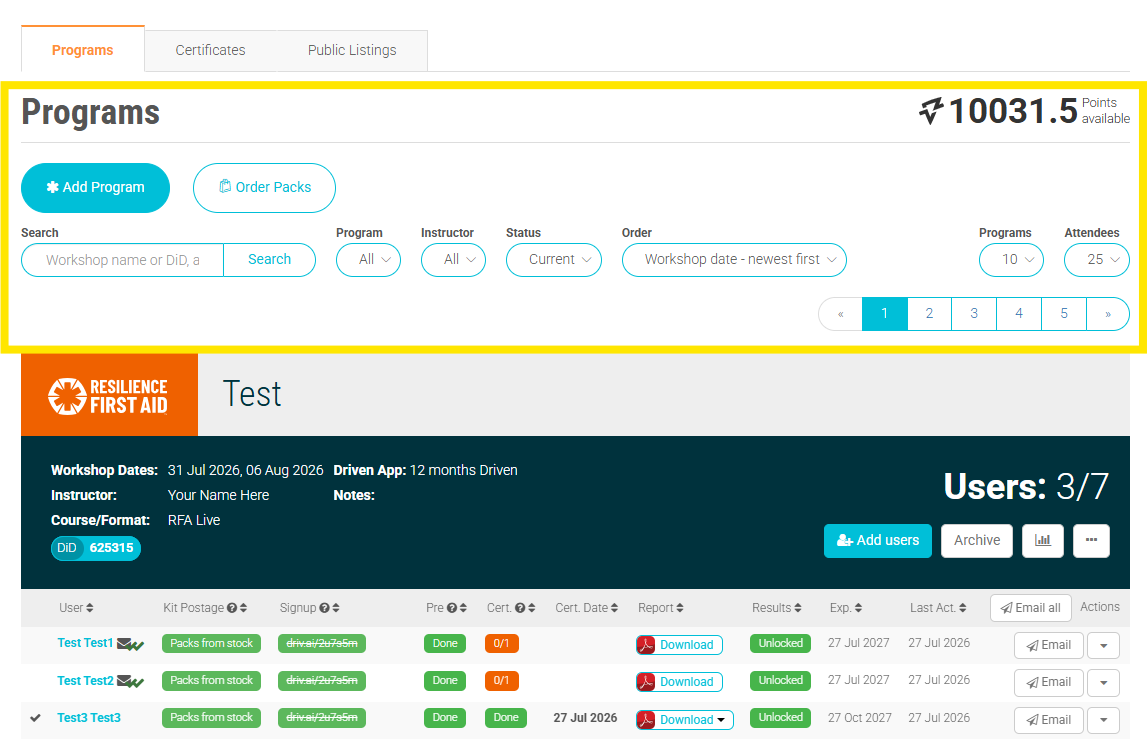
At the top of the Programs page, you can:
Add Program: Create and set up a new program, workshop, or assessment.
Order Packs: Order physical training packs for applicable programs.
Search: Search for a specific program using the workshop name or DiD.
Program: Filter programs by program type.
Instructor: Filter programs by Instructor.
Status: Filter programs by their current status.
Order: Change the order in which programs are displayed, such as by workshop date.
Programs: Choose how many programs are displayed on the page.
Attendees: Choose how many participants are displayed within each program.
Once you locate the program you want to manage, you can view its details and access the features available within that program.
Within a Program
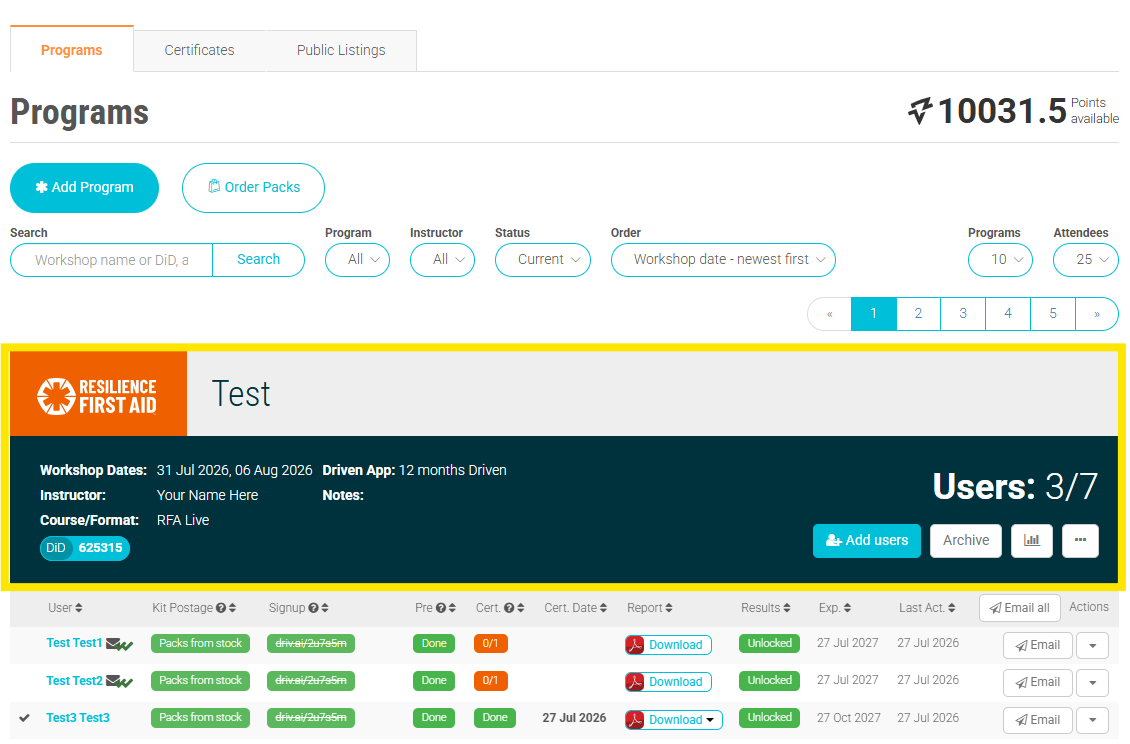
Each program displays key program information in its header, including:
Program title
Workshop dates
Instructor
Course/Format
DiD: The unique Driven Identification number for the program.
Driven App: Displays the Driven App access associated with the program, where applicable.
Notes
Users: Shows the number of participants currently registered and the total number of available seats.
You can also access the following program management features:
Add Users: Register or invite participants to the program. A coach can add participants individually or use Bulk Assign for larger groups.
Archive: Move the program to the archive when it is completed or no longer active.
-
Stats: Access additional program data and reporting options, including:
Create pre-training report
Create post-training comparison report
Open in Data Studio
Feedback Data
CSV spreadsheet
Three-dot menu: Access additional options, including editing the program details.
Managing Participants
Within each program, the participant table allows you to view and manage the individuals enrolled in that program.
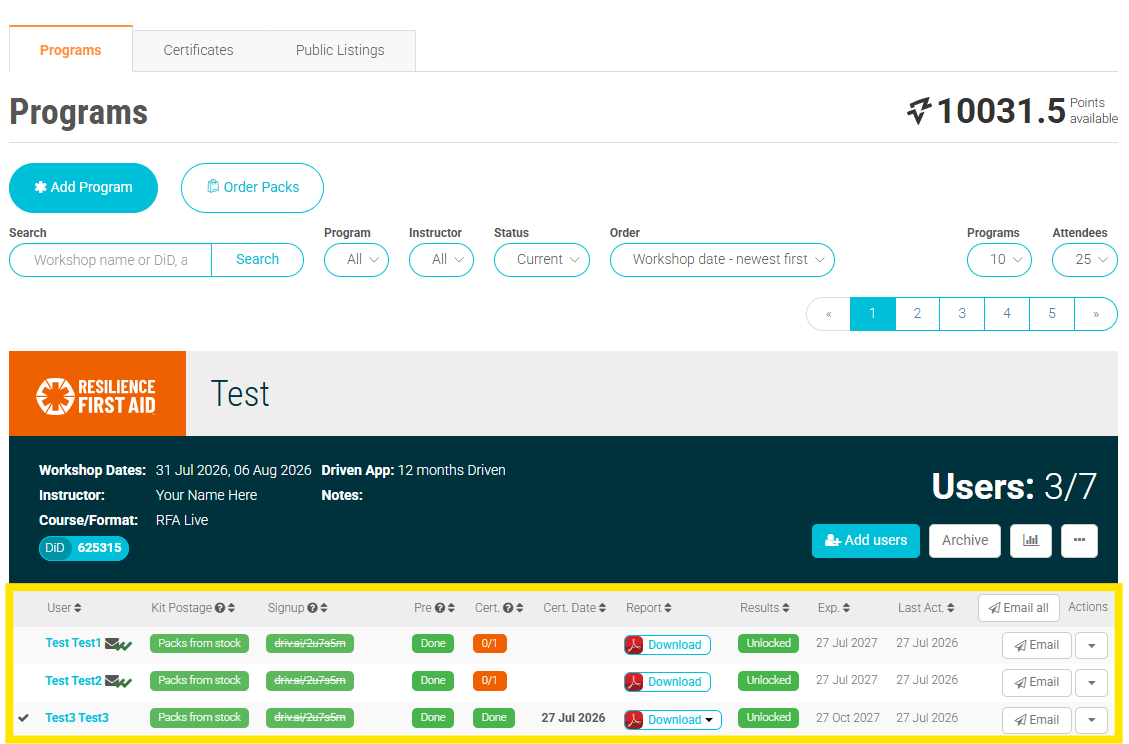
The columns and features displayed may vary depending on the type of program, but can include:
Users: View the participants registered in the program.
Kit Postage: Shows the shipping status of RFA or HART packs for each participant. See Tracking Packs below for more information.
Signup Link: Each participant receives a unique registration link. Used links are crossed out.
Pre-Work: Shows whether the participant has completed the required Pre-Work and when they can progress to the next stage.
Training Hours: Shows progress through the required training hours, where applicable.
Certification: Shows the participant's certification progress. When the required training is complete, Activate can be used to begin the final Knowledge Test.
Cert Date: Displays the participant's certification date once certification is completed.
Report: Provides access to available participant reports.
Results: Shows the participant's assessment or program results where applicable.
Expiry: Displays the relevant expiry date where applicable.
Last Active: Shows the participant's most recent activity date.
Email: Send an email directly to an individual participant.
Edit Participants: Click the down arrow on the right side of the participant's row to open additional options, such as Edit User or Cancel Seat.
Additional Tips
Use the participant options to send emails, update participant details, or manage their program access.
Monitor the Pre-Work, Training Hours, Certification, and Certification Date columns to track participant progress through the program.
Use the search and filter options at the top of the Programs page to quickly locate the programs you need.
Use Data Studio for advanced participant data analysis and exports.
Need Help?
If you have questions or need additional support, submit a request via the Contact Us link within Driven Pro. Our team is here to assist you.