
Group Reports in Driven Pro enable Certified Resilience Coaches and administrators to track cohort progress, evaluate training outcomes, and assess group health across mental and physical wellness programs. Reports can be generated from three areas within Driven Pro: Programs, Users, and Data Studio.
Accessing & Downloading Group Reports
From the Programs Section
Log into Driven Pro and select Programs from the left sidebar.
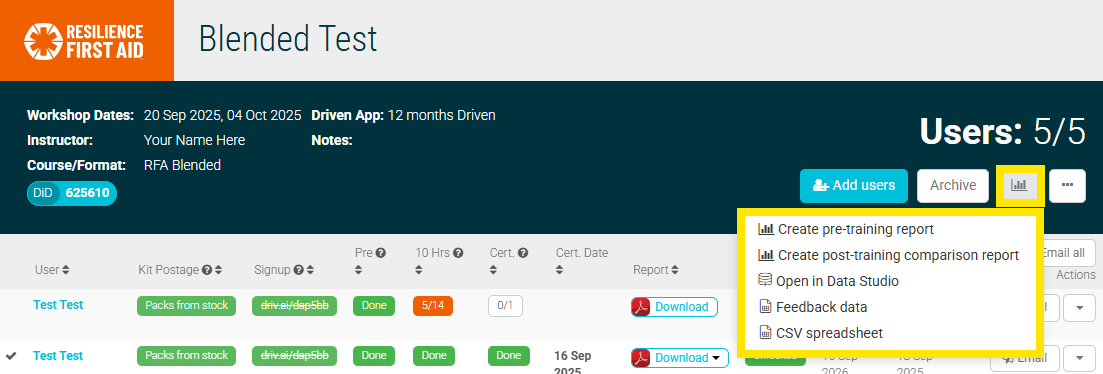
Locate the specific program and click the Stats icon next to the program name.
Select your desired report option (Pre-training, Post-training Comparison, Data Studio, or Feedback Data).
From the Users Section
Navigate to Users in the left sidebar and find the target program or group.
Click the Stats icon next to the group name.
Choose from PR6 Group Report, Data Studio, or Training Summary.

From Data Studio (Advanced Filtering)
Select Data Studio from the left sidebar menu.
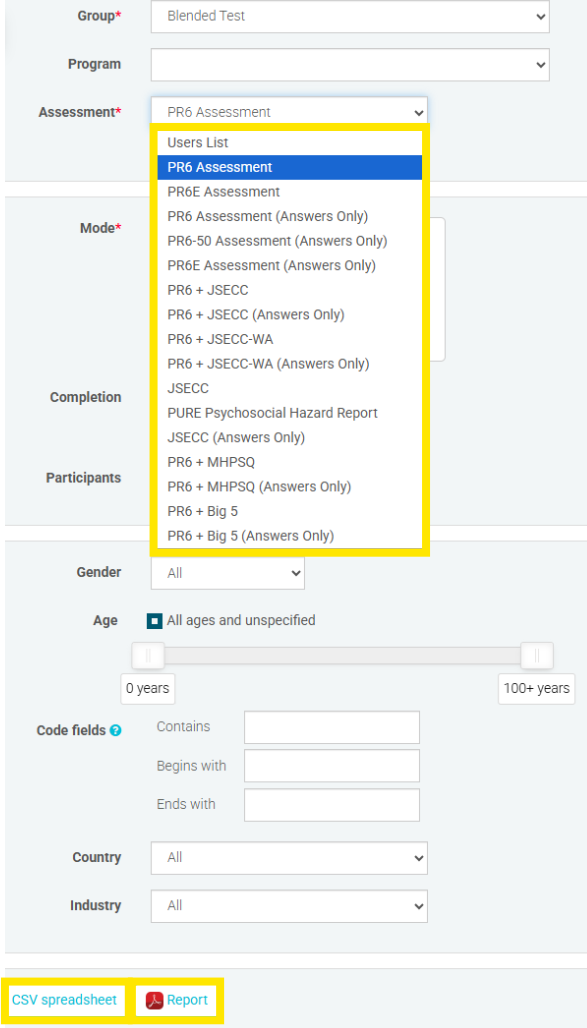
Select your Group or Program (one or the other), and assessment track from the dropdown menus.
(Optional) Apply demographic filters (Gender, Age, Code fields, Country, Industry).
Select Export results as a CSV spreadsheet for custom data analysis or Download aggregate PDF reports for ready-to-share summaries.
ℹ️ Export Formats: PDF reports provide styled visual charts designed for client presentations and executive summaries, while CSV exports provide raw numerical data for custom reporting and LMS integration.
Available Group Report Types
Pre-training Group Report: Summarizes baseline assessment scores before program kick-off.
Post-training Comparison Report: Compares baseline against post-program results to highlight score growth and measure overall training impact.
Feedback Data: Aggregates anonymized participant evaluation feedback.
Assessment Reports: Detailed domain analyses for PR6 (16-item and 50-item), PRE-Extended (84-item), JSECC+PURE, and Big5 assessments.
Training Summary: Overview of group participation, activity completions, and engagement levels.
Best Practices for Group Reporting
Leverage Data Studio Filtering: Apply demographic filters (e.g., department, location) in Data Studio to compare subgroups within larger cohorts.
Track Pre/Post Growth: Ensure participants complete both baseline and post-training assessments to generate comparison reports accurately.
Maintain Participant Anonymity: Group reports automatically aggregate participant data to protect individual privacy while giving administrators actionable cohort insights.
Troubleshooting & Support
If you experience issues generating group reports, applying demographic filters in Data Studio, or exporting CSV spreadsheets, please reach out to our practitioner support team via Support in Driven Pro or email us directly at support@hellodriven.com.