
The Download Participant Report feature in Driven Pro enables coaches and administrators to review individual participant assessment results, track resilience growth over time, and export progress summaries.
Accessing Individual Participant Reports
You can open a participant's profile page from three convenient locations in Driven Pro:
-
Select an Access Point:
Via Programs: Go to Programs, locate your training cohort, and click the participant's name.
Via Users: Go to Users, search your group directory, and select the participant's name.
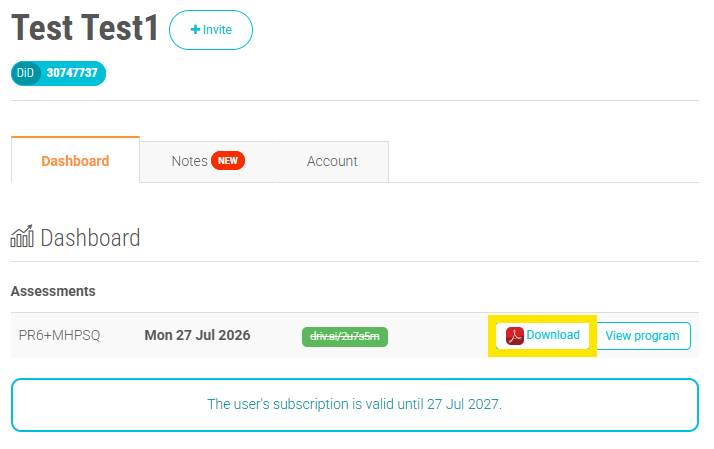
Locate Reports: On the participant's profile dashboard, locate the Assessments / Reports card near the top of the page.
Download: Click Download next to the specific assessment date, or click View Program to view the report online.
Bulk & Aggregate Data Exports
If you need to generate reports for multiple participants simultaneously or analyse raw dataset metrics:
Navigate to Data Studio in the left sidebar menu.
Select the target group, program, and assessment track.
(Optional) Apply demographic filters (Gender, Age, Code fields, Country, Industry) to isolate specific cohorts.
-
Export your data:
Select Download aggregate PDF reports to save presentation-ready PDF summaries.
Select Export results as a CSV spreadsheet to generate raw data files for custom analysis or LMS integration.
ℹ️ Pro Tip: Utilizing Data Studio is the fastest method to download reports in bulk across large cohorts without having to open individual participant profiles one by one.
Troubleshooting & Support
If you encounter difficulties locating a participant profile, experience missing assessment reports, or need help exporting CSV spreadsheets, please contact our practitioner support team via Support in Driven Pro or email us directly at support@hellodriven.com.