
Public Profile Management on the Driven Pro platform ensures you present your professional identity in the best light and control your visibility within the Driven community. This guide outlines the steps to update, customize, and manage the visibility of your public profile as a CReC-certified coach and Practitioner.
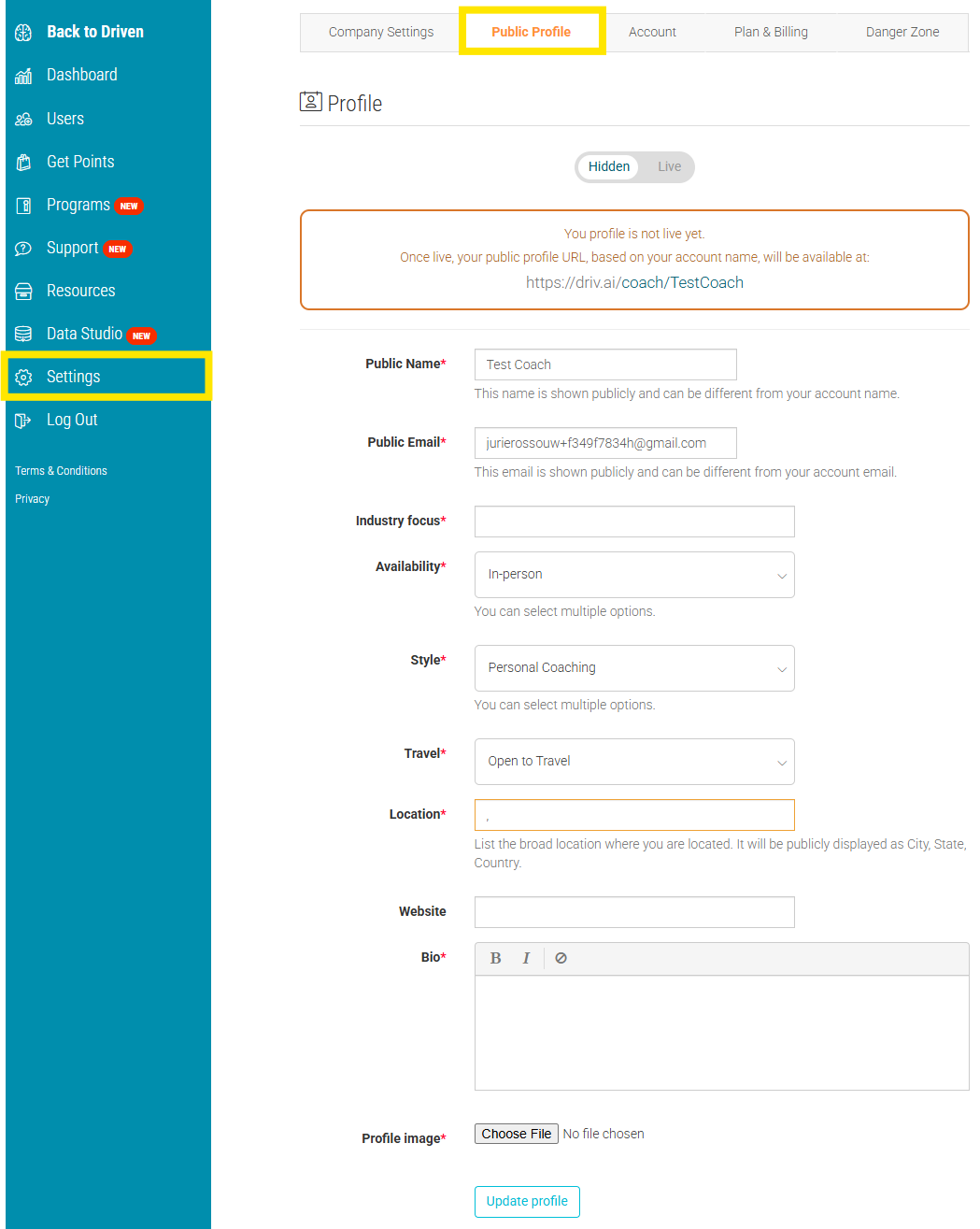
Accessing Your Public Profile Settings
Log in to your Driven account at https://hellodriven.com/login using your registered email and password.
Once logged in, navigate to the left sidebar and click on Account.
Within the Account section, select Public Profile.
ℹ️ Note: You can also access your Public Profile from your Driven Pro account by navigating to Settings > Public Profile.
Controlling Profile Visibility
At the top of the Public Profile page, you will find options to control the visibility of your profile:
Hidden: Your profile will not be visible to others. Use this setting if you are not ready to share your profile publicly.
Live: Your profile becomes publicly accessible. When set to Live, your profile can be viewed via a unique URL:
[https://drivn.at/coach/yourusername](https:/drivn.at/coach/yourusername)(replaceyourusernamewith your Driven account name).
Switch between Hidden and Live at any time to control who can view your professional information.
Updating Your Public Profile Information
In the Public Profile area, you can add or update your personal and professional details:
Public Name: Your full name and display title as shown in the directory.
Position / Title: Your professional designation or coaching role.
Availability: Select your coaching availability (e.g., In-person, Online, or Both).
Style & Level: Specify your coaching style and target client level.
Location: Your primary city and country.
Website: Direct link to your external professional website or business portfolio.
Bio: A short biography or description of your coaching approach, background, and specializations.
Profile Image: Click Choose file to upload or replace your profile photo.
After updating your information, click Update profile at the bottom of the page to save your changes.
Best Practices for Profile Management
Review your Public Profile regularly to ensure it reflects your current qualifications and offerings.
Use the Live setting to increase your visibility and connect with potential clients or colleagues within the Driven community.
Keep sensitive or private information off your public profile to maintain your privacy and security.
Troubleshooting and Support
If you encounter any issues while managing your Public Profile or have questions about visibility settings, please reach out to the Driven support team by sending us an email at support@hellodriven.com. Assistance is available to ensure your profile management experience is smooth and secure.