
The Add Program feature in the Driven Pro Admin Area enables you to organize workshops, invite participants, and manage program logistics efficiently. This guide walks you through each step of setting up a new program using your Driven Pro account.
Start a Program
Log in to your Driven Pro account.
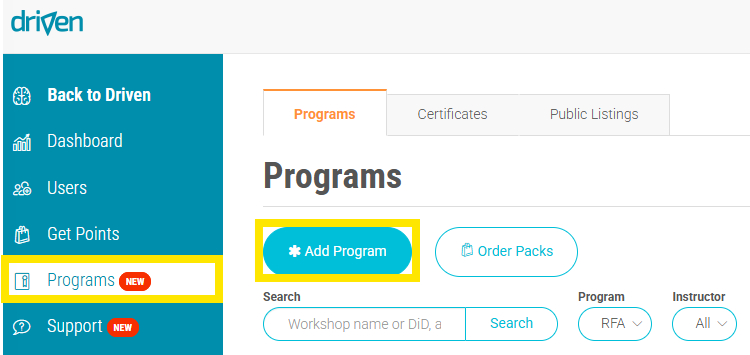
From the main menu, select Programs.
Click the Add Program button.
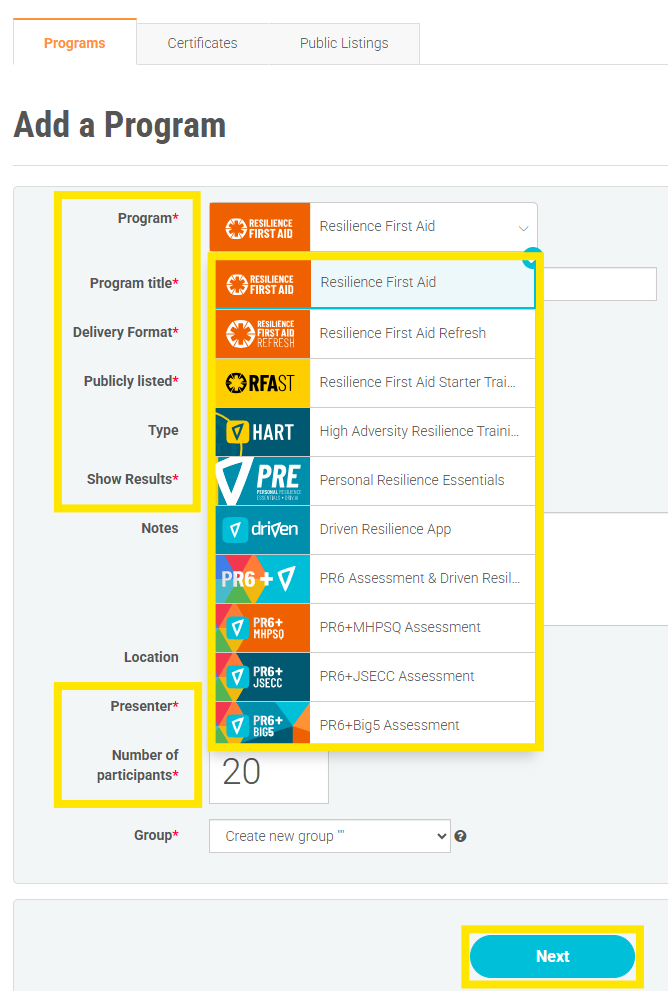
Select Your Program
Choose the specific program you wish to create from the available options. The setup steps may vary based on your selection. For example, if you select Resilience First Aid, you will be prompted to provide the following details:
Program title
Delivery format
Workshop dates
Number of participants
Signup link type
Shipping details
Complete each required field and click Next to continue through the setup process.
Shipping Method
⚠️ Important: Choose the pack shipping method that best fits your workshop:
Individual shipment: Each participant enters their own shipping address during registration.
Consolidated shipment: All packs are shipped to a single address.
Use packs from stock: Use packs you already have in stock; no new shipment will be created.
Review and Confirm Order
Check the program details, shipping address, and order summary.
Click Confirm to finalize and create the program.
Add Users
Once your program is confirmed, you can add participants by entering their first name, last name, and email address.
Participant details are automatically saved and assigned to the workshop as you enter them.
You can also copy and paste participant details directly from a spreadsheet to make adding multiple users easier.
ℹ️ Optional Step: This step is optional - you can go directly to the program without adding participants and add them later from the Programs section.
Share the Signup Link or Send Invitations
Copy the program's signup URL or QR code and share it directly with participants.
If you have added users, you can review the invitation email and select Send Email Invites to send invitations to all listed participants.
Sending invitations at this stage is optional. You can also return to the program later to manage and invite participants.
Next Steps
After your program is set up, you can monitor participant progress, manage resources, and utilize the Driven Resilience App to support ongoing resilience development.
Need More Help?
If you have further questions or require assistance, please contact Support team at support@hellodriven.com. We are here to help you make the most of your resilience programs.